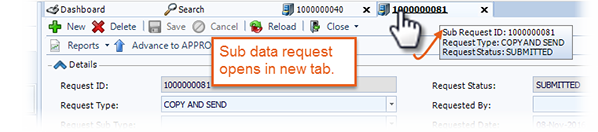
The Sub Data Request accommodates requests for data that you are distributing to multiple locations. The Sub Data Request populates the information from the main request, making it available for you to filter out the detail that is not applicable.
To create a Sub Data Request:

- In the lower area of the workspace, click the Sub Data Request tab.
-
Click New.
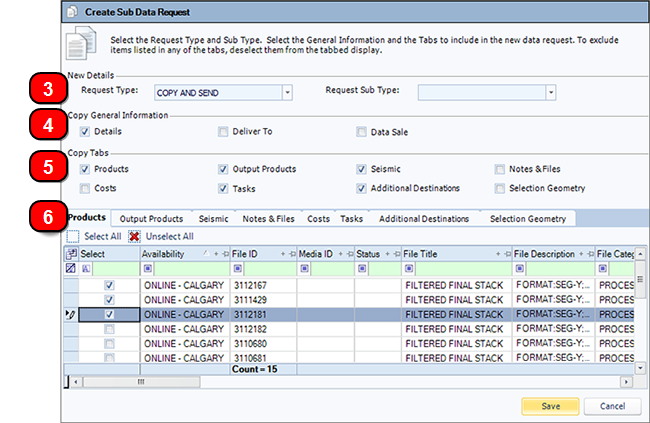
The Create New Sub Data Request window opens.
-
In the New Details section, select the Request Type and Request Sub Type.
-
In the Copy General Information section, select the areas from the main request to copy. The information will copy to your Sub Data Request and will be available to edit further if needed.
-
In the Copy Tabs section, select the checkbox next to the tab titles that you want to copy to your Sub Data Request. Selecting a tab includes all the detail from that tab.
-
Use the tabs displayed in the lower panel and the checkboxes in the Select column to specify the rows to copy. Alternatively, click Unselect All and select the particular items to include. Click through each tab and select or deselect the rows for your Sub Data Request.
-
Click Save. The selected information copies to the sub data request and opens in a new module tab. Point to the tab title and a pop-up opens with the sub request details.